The school Chromebook already has AI on it
Most of the advice about children and AI assumes you are deciding whether to allow one. If your child came home with a school device, that decision was made somewhere else — by a person you have probably never met, in a console you cannot open. Here is who actually holds the switch, what Google’s own documentation says a student account gets, and the five questions that are worth one email to the school.
The switch is real, and it is not in your house
A school-issued Google account is not a smaller version of a home account. It is a managed account inside an organisation, and Google’s own Classroom help page is blunt about what that means: "Your administrator creates and manages both teacher and student accounts", and "Only your administrator can enable or restrict app access for an individual." Read on 30 October 2026. Your Family Link settings govern the account you created for your child. They do not reach the one the district created.
This is the single most useful thing to know, and almost no article on this subject says it out loud. Parents spend a careful evening weighing a toggle at home for an account their child barely uses, while the account they use for six hours a day sits under a different set of rules entirely.
There is a lever, though, and it also runs through the school. The same page lists among the administrator’s responsibilities "setting age-based permissions" and "enabling access to additional services for a user after obtaining parental consent". So consent is part of the model — it is just collected by the school rather than offered to you by a settings screen. If you have never been asked, that is a question worth asking, not evidence that nothing was switched on.
The same product, on the account you do control at home · What to ask when you are in the room with them
Who controls what
Four things a parent usually assumes are one decision. They are not, and they sit in three different places. The right-hand column is the one to read first — it is what the control does not reach.
| The thing | Who decides it | What that leaves you |
|---|---|---|
| Whether AI is on for the school account. | The school or district Workspace administrator. Google’s admin documentation opens with "As an administrator, you control who uses the Gemini app in your organization." | Nothing to toggle at home. What you have is a question to ask and, under the access model above, a consent conversation you may not have been offered yet. |
| Which AI features that account gets. | Partly the administrator, partly Google’s own age tiering, which is applied to the account rather than chosen by the school. | The feature set for an under-18 account is narrower than the adult one, but narrower is not the same as supervised. Nothing in it reports back to you. |
| Whether AI is on for your home account. | You, in Family Link. | The decision most articles are about, and the smaller of the two in practice if the school device is where the hours go. |
| What your child does with it either way. | Nobody. There is no setting for this in any of the three places above. | The part that is genuinely yours, and the only part that travels between devices, accounts and school years. The last section of this page is about that. |
What a student account actually gets
Two dates matter here, because the rule moved. In November 2024 Google announced that administrators could turn the Gemini app on for teen students, "ages 13+ or the applicable age in your country", with an AI literacy video on first use. In June 2025 that gate moved again: Google’s own release note says the Gemini app "is now available to all education users", of "all ages". If your mental model of this is "it is for the high school", it is a year out of date.
Age still changes what the account can do, though, and the admin documentation is specific about it. Read on 30 October 2026: "Google Workspace with Gemini is unavailable to users under age 18", and the under-18 feature table withholds the Pro and Thinking models, Deep Research, Audio Overviews, Gemini Live, and music and video generation — while keeping Canvas, Gems, image generation, file upload and quizzes. That is a real restriction and it is worth knowing. It is also worth being clear about what it is not: a weaker model is still a model that will answer a homework question in full, and none of those limits is a supervision feature.
On data, Google makes a specific public commitment for education accounts, and it is a better commitment than the one attached to a consumer account: the terms "include enterprise-grade data protections, so your data is not reviewed by anyone or otherwise used to train AI models". That is a vendor statement rather than an audit, and what governs a school account’s records is a different legal question from a home account — one this page does not try to answer. But it is a published commitment, and it is the right thing to ask your school to confirm applies to the edition they bought.
Five questions, one email, five minutes
- 1. Which AI tools are enabled on my child’s account? Ask for the list, not a yes or no. "Gemini is off" and "Gemini is off but the AI features inside Docs are on" are different answers, and only one of them is usually what the sender meant.
- 2. Was that enabled as a core service or an additional service? This sounds like jargon and is the question with the most leverage in the email. Additional services are the category Google ties to obtaining parental consent. Asking which bucket it sits in tells you whether a consent step should have reached you.
- 3. Does it work on the device at home, or only on the school network? Many districts apply different policy off-campus. If the answer is "only at school", the evening homework question answers itself. If nobody knows, that is also useful.
- 4. Can a teacher or an administrator see what my child typed? Ask it plainly. The answer is often no, and a clear no is more useful than a vague yes — it tells you the supervision you were imagining does not exist, and that the conversation at home is doing all the work.
- 5. What is the school’s rule for using it on assignments? The one most likely to prevent an actual problem. A child who has been told "it is on your school laptop" and never told where the line is will find the line by crossing it.
What being able to see it actually looks like
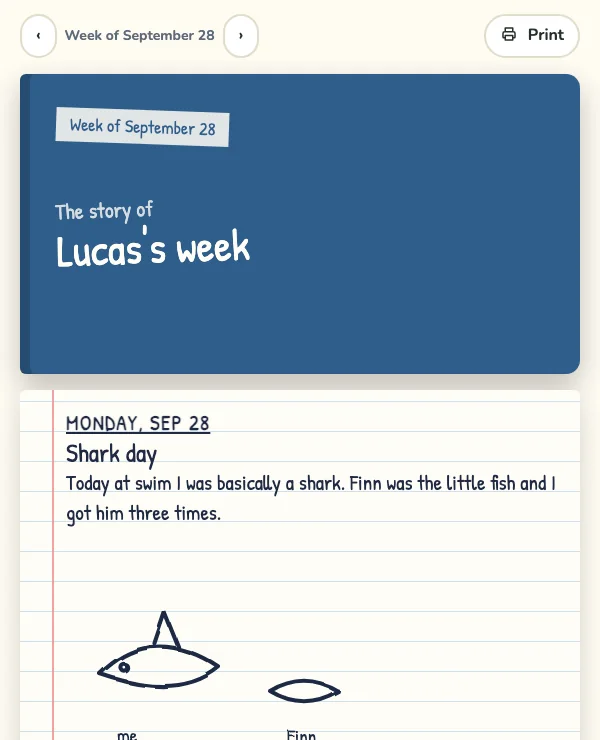
The honest summary of everything above is that a school account gives a parent access control and no visibility. For contrast, what the other shape looks like — shown rather than described, because a claim about visibility should be checkable.
The part that is actually yours
Your child will meet AI on a device you do not administer, in a year you did not plan for, under settings that moved twice in eighteen months. What survives all of that is what they do when an answer appears — so the work at home is not a settings audit. It is one habit, asking how a confident answer could be checked, and one sentence about what the tool is for. Neither expires when the district changes its policy or the laptop goes back in June.
How to teach the checking habit, and what the research says about it · AI tutors, and what "safe" is doing in that sentence
The sources under this page
Everything factual here comes from Google’s own live documentation, read on 30 October 2026 and quoted rather than summarised. That is the strongest available source for what a school account can do and the weakest possible source for whether it is a good idea — a distinction worth keeping as you read.
- Google Classroom Help, read 30 October 2026 — About access settings for your Google Workspace for Education account. (Google’s own page: "Your administrator creates and manages both teacher and student accounts", "Only your administrator can enable or restrict app access for an individual", and the administrator’s role includes "setting age-based permissions" and "enabling access to additional services for a user after obtaining parental consent".) The control model: the administrator creates and manages the accounts, only the administrator can enable or restrict app access, and the administrator’s role includes age-based permissions and obtaining parental consent for additional services. This is where the "not in your house" claim comes from. What it does not show: Describes how the account model works, not what any particular district has actually switched on. It establishes WHO holds the control; only your own school can tell you how they have set it.
- Google Workspace Admin Help, read 30 October 2026 — Turn the Gemini app on or off (Education). (Google’s own admin documentation: "As an administrator, you control who uses the Gemini app in your organization"; Gemini for Education is "a version of the Gemini app built for the unique needs of the educational community"; "Google Workspace with Gemini is unavailable to users under age 18", and the under-18 feature table withholds the Pro and Thinking models, Deep Research, Audio Overviews, Gemini Live, and music and video generation while keeping Canvas, Gems, image generation, file upload and quizzes.) The admin-side quote and the under-18 feature table. Describes what a school CAN configure, not what any particular district chose — which is exactly why the email in the steps above is the only way to find out. What it does not show: Administrator documentation, so it describes the controls available to a school rather than the defaults any school chose. It does not say whether the feature set differs again for a child well under 13, and we do not claim it does.
- Google Workspace Updates, 20 June 2025 — The Gemini app is now available to all education users. (Google’s own release note: the app is available to education users of "all ages", under terms that "include enterprise-grade data protections, so your data is not reviewed by anyone or otherwise used to train AI models".) The June 2025 move to all education users of all ages, and the enterprise data-protection commitment quoted in full. A vendor release note, so it is a published promise rather than a verified one. What it does not show: A vendor release note and a vendor data claim, neither independently audited. It is evidence that the age gate moved and that Google has made a public commitment — not a verification that the commitment holds.
- Google Workspace Updates, 8 November 2024 — Expanding access to the Gemini app for teen students in education. (Google’s own release note: admins could turn the app on for teen users "ages 13+ or the applicable age in your country", and "Upon accessing the Gemini app for the first time, teens will be guided through an AI Literacy video".) Cited for history only — the 13+ teen gate and the AI literacy video. The age line in it has been superseded by the note above and should not be quoted as the current rule. What it does not show: Superseded on the age question by the June 2025 note above, and cited here only for the history — that the teen gate existed and then moved — and for the onboarding video. Do not quote the 13+ line as the current rule.
Questions parents ask
- Can I turn off AI on my child’s school Chromebook?
- Not from home. A school-issued Google account is managed by the district, and Google’s own Classroom help page states that "Only your administrator can enable or restrict app access for an individual". Your Family Link controls govern the account you created, not the one the school created. The route that does work is a question to the school — and because enabling additional services is tied to obtaining parental consent, that is a conversation you are entitled to have.
- Is Gemini on school accounts only for high schoolers?
- Not since June 2025. Google’s own release note says the Gemini app "is now available to all education users", of "all ages" — a change from the November 2024 rollout, which was for teen students "ages 13+ or the applicable age in your country". Whether it is actually switched on for your child is still the administrator’s decision and varies by district.
- Does a younger student get the same AI as an adult?
- No. Google’s admin documentation, read 30 October 2026, says "Google Workspace with Gemini is unavailable to users under age 18", and the under-18 feature table withholds the Pro and Thinking models, Deep Research, Audio Overviews, Gemini Live, and music and video generation, while keeping things like Canvas, image generation, file upload and quizzes. It is a narrower product — but none of those restrictions is a supervision feature, and the narrower version will still write the essay.
- Is my child’s schoolwork being used to train AI?
- Google’s published commitment for education accounts says no: the terms "include enterprise-grade data protections, so your data is not reviewed by anyone or otherwise used to train AI models". That is a vendor statement rather than an independent audit, and it attaches to the education editions. The sensible move is to ask your school to confirm it applies to the edition they actually bought.
The habit outlives the device
Whatever the district switches on, what your child does with an answer is learned at home. Luchi is built around that: kids make things with AI, explain what they made in their own words, and you get a short note of what they actually did — on an account you control.
Part of the series: Is AI safe for kids?
Related guides in this series
- Is ChatGPT safe for kids? — A straight answer by age — the risks that actually come up, and the five habits that make AI safe when you do let kids use it.
- Screen time and AI — Not all screen time is equal. Why active, creative AI use is different from passive scrolling — and how to keep your child on the right side of the line.
- What is my kid doing on AI? — You can’t read every transcript. Four checks that take under a minute each, what each one tells you, and the one question a ten-year-old actually answers.
- AI apps a parent can actually monitor — Alert, transcript, or record — three different things sold under one word. What seven products say they show a parent, quoted from their own sites.
- Is Google Gemini safe for kids? — Google’s own page for parents is more candid than the reviews — imperfect filters, stated hallucination, "not a person to confide in". What it says, what it leaves out, and the four decisions that are yours.
- Deepfakes: what to actually teach a 10-year-old — The “look closely, count the fingers” advice has been measured, and it does not work — neither warnings nor money improved anyone’s accuracy. What to teach instead, and why a detector app is not the backstop.
- What to ask at a parent-teacher conference about AI — The list you found ends with “ask how you can help with homework” — the one form of involvement a 50-study meta-analysis found was not associated with achievement. Six questions that are, and what each answer tells you.
- Is Siri the kind of AI parents worry about? — Apple has quietly split Siri in two — its own page now says Apple Intelligence “powers an entirely new version of Siri: Siri AI”. How to tell which one your child is talking to, what Apple keeps, and the settings worth changing tonight.
- A family AI agreement you will actually keep — Twenty clauses, signed on Sunday, dead by Thursday. A four-clause version built on what a 94-test meta-analysis found actually makes a plan start — naming the when and the where — plus the one question to ask each week.
- An AI said something it should not have — Google’s own parent page says the filters "are not perfect". The order to do things in — keep the conversation, ask the one question, report from inside the chat, decide one thing — and the point at which this hands you to somebody qualified.
- My child believes everything the AI says — The gap is usually confidence rather than method, and a check is still a looking-up — which across nine experiments left people MORE sure of what they understood. The calibration habit that moves it, in four turns.